

Sendd Email Dictation: Turn Spoken Drafts into Polished Emails in Gmail or Outlook
Learn how sendd email dictation works inside Gmail and Outlook: record directly in the email body, see live transcription, then click again to rewrite it into a clean, professional message you can review before sending.
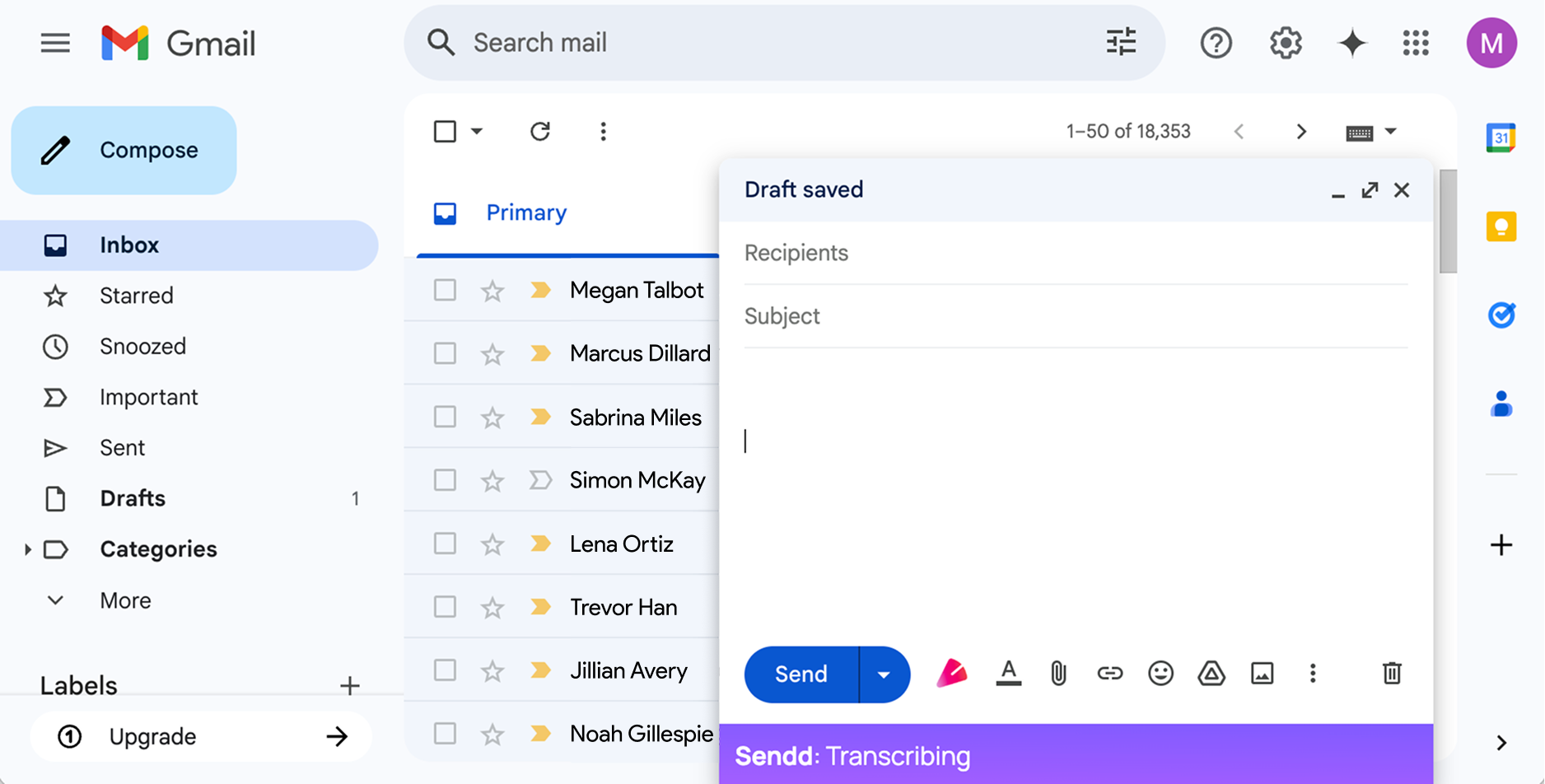
Writing a polished email can be slow—not because you don’t know what to say, but because translating a messy mental outline into clean paragraphs takes time. For many professionals, the hardest part is getting a solid first draft down without sending something that reads like a raw transcript.
That’s the sweet spot for sendd email dictation: you speak naturally, Sendd transcribes directly into the email you’re writing, and then rewrites that transcription into professional email body text you can review before sending.
What “sendd email dictation” means in practice
Sendd is an AI-powered Chrome extension that works inside Gmail and Outlook. Instead of dictating into a separate app and copy/pasting, Sendd runs in the compose or reply window.
You’ll see a Sendd logo appear inside your email composer. You use it like this:
The two-click workflow inside Gmail or Outlook
- Open a new email or reply in Gmail or Outlook.
- (Optional) Click where you want the text to be inserted in the email body. If you don’t, Sendd starts at the beginning of the email body by default.
- Click the
 button to start recording.
 - As you speak, live transcription appears directly in the email body.
- Click the button again to stop recording and polish the just-recorded transcription in place.
A key detail: if you click the button again later, that starts a fresh recording. Sendd does not use earlier Sendd transcriptions, previous recording sessions, or the wider email thread as context for a new recording—each recording is handled on its own.
Example: rough spoken dictation → polished email body
Below is a realistic example where speaking is faster than typing, especially when you want to be clear, diplomatic, and complete.
Rough spoken dictation (what you might say)
“Hi Maya—quick update on the Q3 budget. I reviewed the latest sheet and I think we’re okay to proceed with the tooling line item, but I’d like to confirm whether the vendor quote includes ongoing support or if that’s separate. If it’s separate, can we cap support at five thousand for the year? Also can you send me the date you need final sign-off by, because I’m out Thursday afternoon but can approve Friday morning. Thanks.”
Polished email body (what Sendd can produce in-body after you stop recording)
Hi Maya,
Quick update on the Q3 budget: I reviewed the latest sheet and it looks like we’re in good shape to proceed with the tooling line item.
Before we finalize, can you confirm whether the vendor quote includes ongoing support, or if support is priced separately? If it’s separate, I’d like to cap support at £5,000 for the year.
Also, could you share the deadline for final sign-off? I’m unavailable Thursday afternoon, but I can review and approve Friday morning.
Thanks,
How to dictate so the polished result is stronger
Sendd works best when you give it enough substance to rewrite. For longer professional emails, try speaking in “chunks”:
- State the purpose early (“I’m writing to confirm…”, “Quick update on…”).
- Say the key facts and constraints out loud (dates, thresholds, dependencies).
- Use spoken instructions when helpful, like “make that a bullet list,” “remove that sentence,” or “keep it concise.”
Note: if you want a particular tone, choose it in Sendd’s settings before you record (tone options are paid settings). During dictation you can still give natural instructions like “make it more direct,” but the dedicated tone controls are set pre-recording.
Practical review checklist before you hit Send
Sendd doesn’t send emails automatically—you review and send. A quick professional review pass is still important:
- Verify names, numbers, and dates (these are easy to mis-speak or mis-hear).
- Check for missing context: Would the recipient understand the request without reading your mind?
- Confirm any commitments (what you will do vs. what you’re asking them to do).
- Scan the first two lines: Are you clear about why you’re emailing?
- Ensure the close matches the relationship (formal vs. familiar sign-off).
When Sendd is (and isn’t) the best fit
Sendd is most useful when:
- You’re writing longer or more complex emails (updates, coordination, clarifications, decisions).
- You want to capture a complete thought quickly, then let Sendd rewrite it into a cleaner structure.
For very short emails (one-line replies like “Sounds good—thanks”), typing may be just as fast.
Try sendd email dictation in your next real email
If you write professional emails in Gmail or Outlook and want a faster way to get from spoken draft to polished text, try Sendd where you already work: open a compose window, click the button to dictate directly into the email body, then click it again to polish—review, and send when ready.