

How Sendd Email Dictation Helps Professionals Write Polished Emails in Gmail and Outlook
See how Sendd email dictation helps professionals turn live voice dictation into polished email body text—directly inside Gmail or Outlook—plus practical review steps before you send.
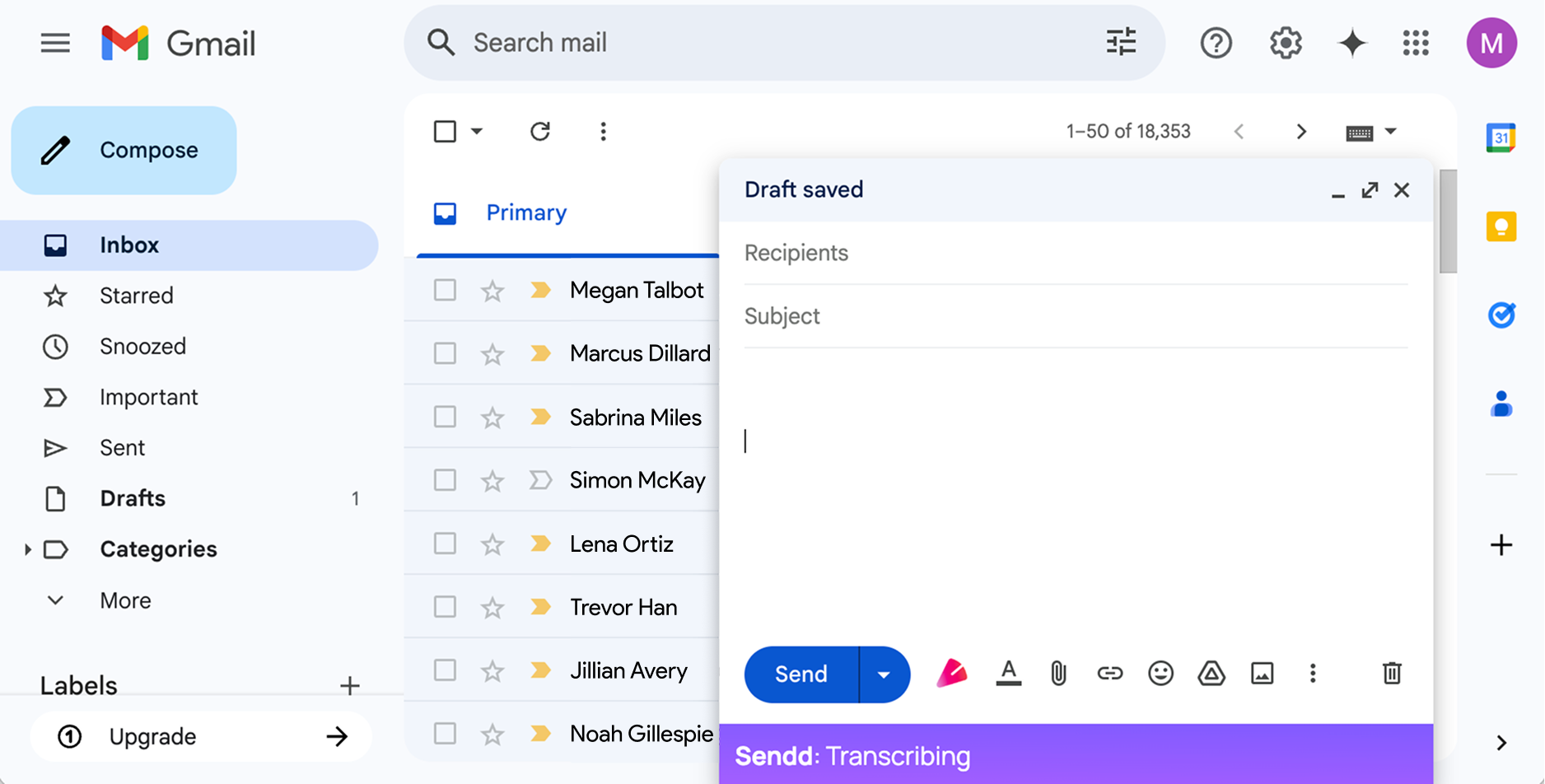
Writing a clear, complete professional email can take longer than it should—especially when you need to explain context, add specific next steps, and keep the tone crisp. Typing is often the slowest part: you draft, rewrite, clean up phrasing, and then re-check for clarity.
Sendd helps by letting you speak your draft naturally and then turning that just-recorded transcription into polished email body text—right where you’re already working: inside Gmail or Outlook.
When professionals benefit most from email dictation
If you primarily send very short replies (e.g., “Thanks!” or “Sounds good.”), typing is usually fine.
Sendd email dictation helps professionals most when emails are:
- Longer than a few sentences (project updates, client follow-ups, internal alignment)
- Time-sensitive (you want speed without sending a rough transcript)
- Structured (you need clear bullets, decisions, owners, and dates)
- Hard to start (you can talk through the message, then refine)
The two-click Sendd workflow inside Gmail and Outlook
Sendd is an AI-powered Chrome extension that works in Gmail and Outlook.
You’ll see the Sendd logo inside the compose/reply window. The workflow is intentionally simple:
- Click the
 button to start recording.
 - As you speak, live transcription appears directly in the email body (by default it starts at the beginning of the email; if you want the text inserted somewhere else, click that spot in the email first).
- Click the button again to stop recording and convert that just-recorded transcription into polished email body text—in the same place.
If you click the button later to record again, that starts a fresh recording. Sendd does not use previous Sendd transcriptions, earlier recording sessions, or the wider email thread as context for the new recording.
Example: rough spoken dictation vs. polished email body
Below is a realistic example of how a professional might speak a draft (including minor corrections and structure instructions), followed by what you can send after polishing.
Rough spoken dictation (what you say)
“Hi Jordan, quick update on the Q2 website refresh. We’ve finished the new navigation and the pricing page layout, and the team is working through the remaining accessibility fixes. Can you confirm whether legal wants another pass on the cookie banner copy? If yes, I’ll send the latest version today. Also can you add bullet points for next steps. Next steps: I’ll share the staging link by Thursday, you’ll review the pricing page on Friday, and then we’ll aim to publish Monday if nothing is blocked. Thanks.”
Polished email body (what you send)
Hi Jordan,
Quick update on the Q2 website refresh:
- We’ve completed the new navigation and the pricing page layout.
- The team is finishing the remaining accessibility fixes.
Could you confirm whether Legal needs another review of the cookie banner copy? If so, I can send the latest version today.
Next steps:
- I’ll share the staging link by Thursday.
- You’ll review the pricing page on Friday.
- If nothing is blocked, we’ll aim to publish on Monday.
Thanks,
Practical review guidance before you send
Sendd does not send emails automatically—so you stay in control. Before clicking Send, take 20–40 seconds to review like a pro:
- Check names, dates, and numbers (dictation can capture them correctly, but they’re high-impact if wrong).
- Confirm the ask is explicit: what do you need from the recipient, by when?
- Scan for ambiguity: replace “soon” with a date, replace “that” with a specific noun.
- Verify formatting: bullets where you want bullets, short paragraphs for readability.
- Remove anything you wouldn’t want forwarded (dictation can feel conversational; keep it professional).
If you need to add a missing detail, you can place your cursor where you want it and record a short addition with the button—just remember each recording is treated independently (no carryover context).
A simple way to start using Sendd as a professional
If your day includes frequent longer emails—status updates, client coordination, stakeholder alignment—Sendd email dictation helps professionals get a solid draft down quickly and convert it into polished email body text inside Gmail or Outlook.
You can try Sendd when a message is more than a couple of sentences, and keep typing for the very short replies where dictation isn’t worth it.