

Voice-to-Email: What It Is, How It Works, and How to Use It in Gmail or Outlook
Learn what “voice-to-email” means, when it helps, and how Sendd’s two-click in-composer workflow turns natural dictation into polished email text—right at your cursor in Gmail and Outlook.
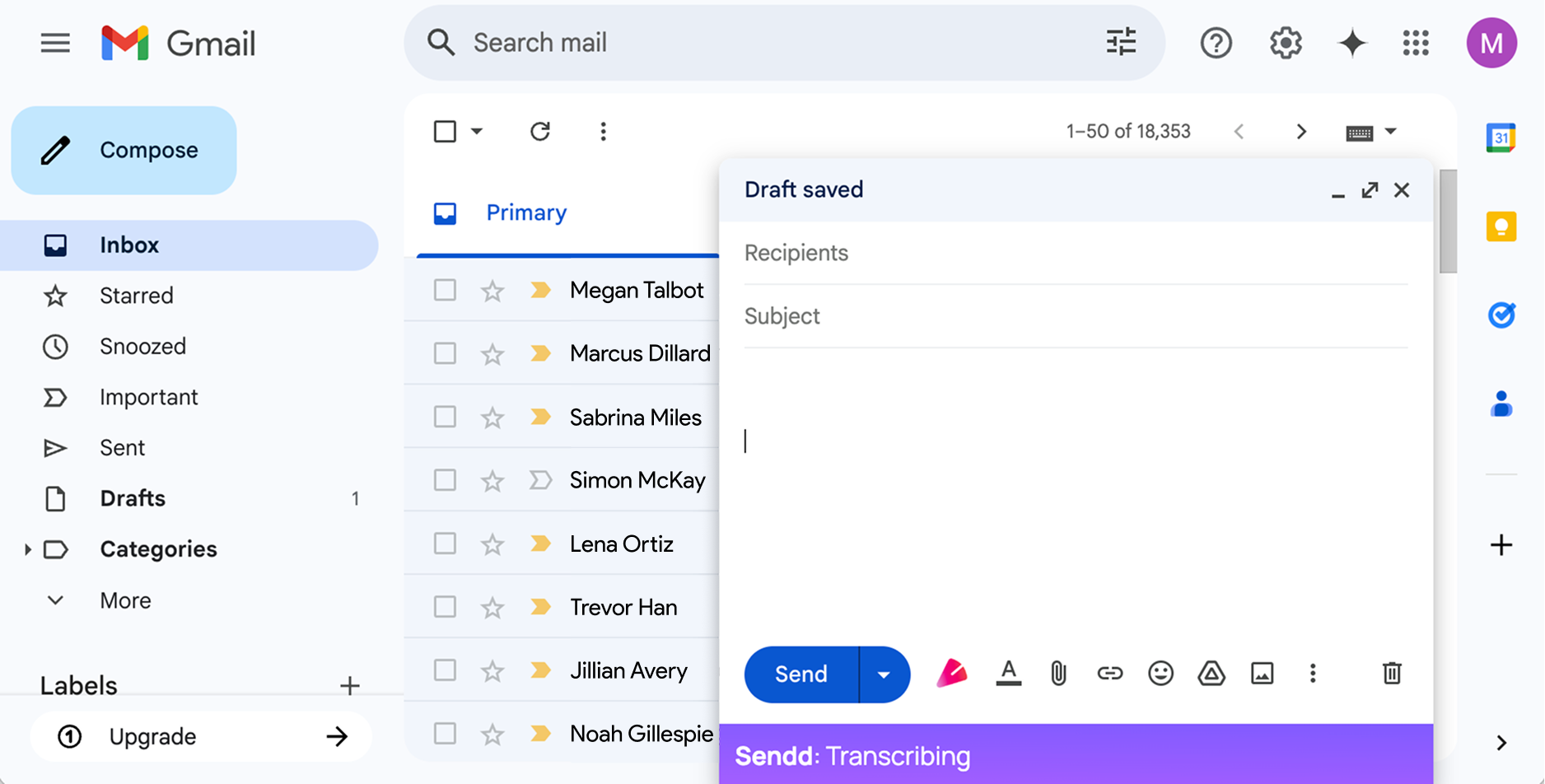
Voice-to-email is exactly what it sounds like: you speak, and an email gets written.
But the part most people actually want isn’t just transcription—it’s turning natural speech into a clear, professional email body without sounding like a transcript.
Sendd is an AI-powered Chrome extension that works directly inside Gmail and Outlook. It gives you a simple in-composer workflow: record at your cursor, then polish the text in place.
What “voice-to-email” means (and what it doesn’t)
In practice, voice-to-email usually includes two steps:
- Dictation (speech → text): getting your words into the email.
- Editing/polishing (spoken draft → professional email): removing filler words, tightening sentences, and formatting longer thoughts into paragraphs or bullets.
A good voice-to-email workflow should let you:
- Write faster when typing is slow or inconvenient
- Keep your message structured (especially for updates, requests, and follow-ups)
- Stay in your email composer (not bouncing between tools)
Where voice-to-email helps most
Voice-to-email is especially useful when you already know what you want to say, but you don’t want to type it.
Common high-leverage scenarios:
- Follow-ups: meeting or call follow-ups that need enough detail to be useful
- Status updates: quick progress notes, blockers, and next steps
- Scheduling: proposing times, confirming details, asking for availability
- Clarifying requirements: summarising what you heard and confirming action items
- Customer/support responses: clear steps with no rambling
How Sendd voice-to-email works in Gmail and Outlook (two-click workflow)
Sendd works inside the Gmail or Outlook compose/reply window.
Here’s the flow:
- Click the
 button to start recording.
 - As you speak, live transcription appears directly in the email body.
- Click the button again to stop recording and convert that just-recorded transcription into polished email body text in the same place.
A useful detail: Sendd starts at the beginning of the email by default, but you can click a specific spot first if you want the next sentence or paragraph to appear there.
Recording again later: fresh start
If you click the button again later, Sendd starts a fresh recording in the email body.
Sendd does not use previous Sendd transcriptions, earlier recording sessions, or the wider email thread as context for a new recording. Each recording is handled on its own—so if you want something included, say it in that recording.
A practical example (spoken dictation → polished email body)
Below is a realistic example of what you might say out loud, followed by what you’d want to send.
Rough spoken dictation example
“Hey Priya—quick follow up on the revised quote. Just wanted to check if you’d had a chance to review. If it helps I can hop on a quick call today or tomorrow. Also, could you confirm whether you want the annual billing option or monthly? Thanks.”
Polished email body example
Hi Priya,
Just following up on the revised quote—have you had a chance to review it?
If it’s easier, I’m happy to jump on a quick call today or tomorrow. Also, could you confirm whether you’d prefer annual billing or monthly?
Thanks,
Tips to get better results with voice-to-email
1) Speak in “email chunks,” not one long stream
Try dictating in short sections:
- Opening line
- Main ask / key info
- Next step
Because Sendd inserts text at your cursor, you can place the cursor and record each chunk where it belongs.
2) Say formatting instructions out loud
Sendd can handle natural spoken cleanup instructions like:
- “Make that a bullet list.”
- “Remove the last sentence.”
3) Use the cursor intentionally
Before you record, click into the email where you want the text to appear:
- Under your greeting
- After a paragraph
- Inside a numbered list
Then click the button to start.
4) Review before sending (always)
Sendd helps you draft quickly, but you should still review:
- Names, dates, and numbers
- Any promises or commitments
- Attachments mentioned
- Tone (especially for sensitive messages)
Sendd does not send emails automatically—you stay in control and send only after you’ve checked the final message.
Getting started with Sendd voice-to-email
If you write a lot of email in Gmail or Outlook, voice-to-email can be one of the simplest ways to save time without lowering quality.
With Sendd, you stay in the compose window and use a straightforward loop:
- Click the button to record at your cursor
- Click it again to turn what you just said into polished email text, right where it belongs
Sendd includes a free tier (currently up to 15 minutes of audio per month) and a Pro tier (currently £8/month) with tone options that you choose before recording.