

Voice-to-Email: How to Write Professional Emails Faster (Without Sounding Like a Transcript)
Learn what “voice-to-email” really means, when it works best, and how Sendd helps you turn natural dictation into polished Gmail and Outlook emails—always with a review step before you send.
Voice-to-email is exactly what it sounds like: you speak, and your email gets written.
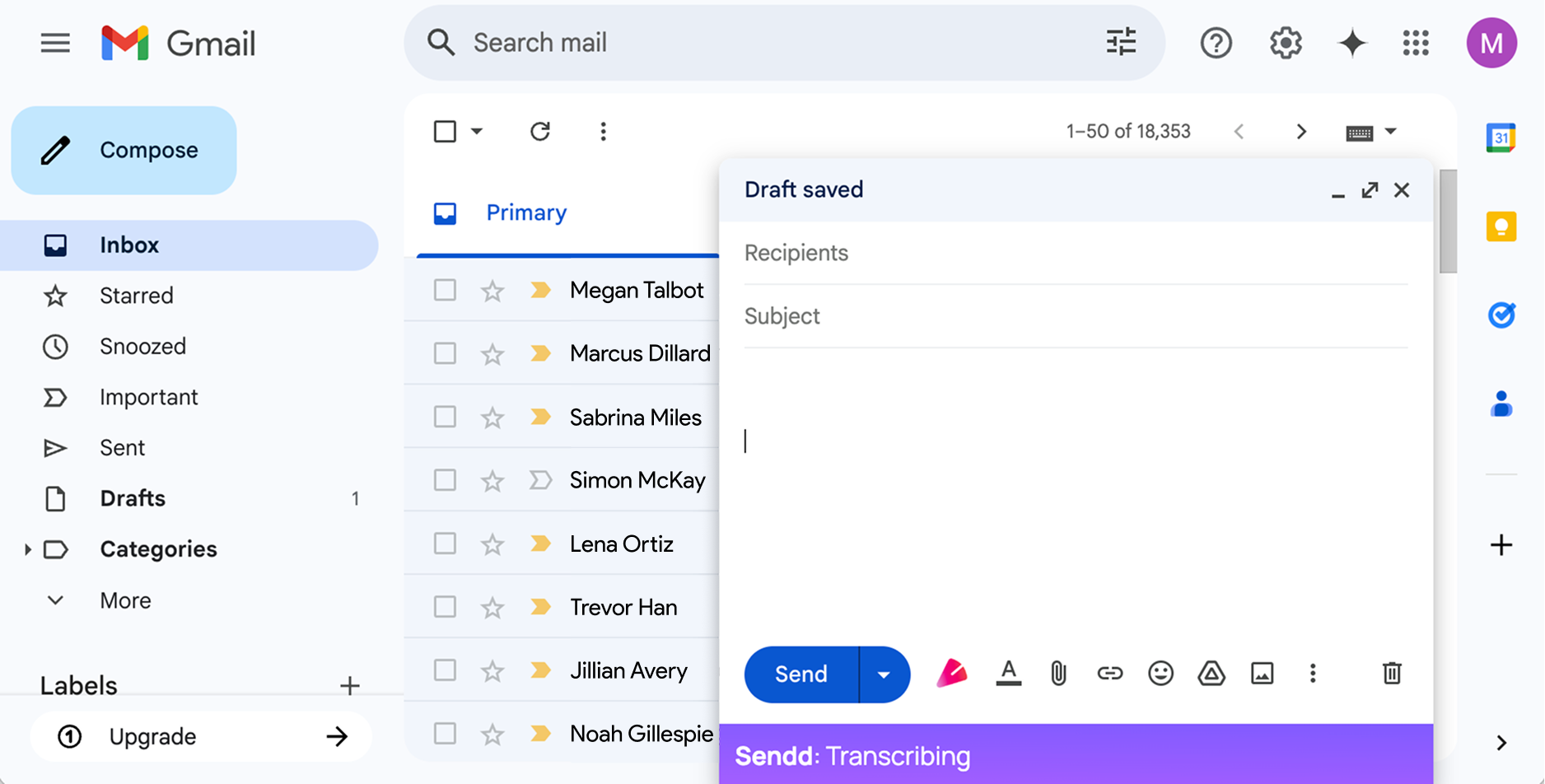
But the difference between useful voice-to-email and a frustrating transcript is how naturally it fits into the email you are already writing. The best workflow keeps you inside the compose window, lets you see the transcription appear as you speak, and then polishes that text without moving it somewhere else.
Sendd is an AI-powered Chrome extension that works in Gmail and Outlook. It turns natural voice dictation into polished professional email body text. You review the draft before sending—Sendd does not send emails automatically.
What “voice-to-email” means (and what it doesn’t)
A lot of tools treat voice dictation like a keyboard replacement: you talk, it types, and you get a wall of text.
In practice, voice-to-email works best when it helps with the things people struggle to do quickly while speaking:
- Turning messy spoken thoughts into a clear structure
- Converting “and also…” into bullets, paragraphs, or a short list
- Applying quick spoken edits (e.g., “remove that sentence”)
Voice-to-email doesn’t mean the tool should read your whole thread, guess missing details, or keep using earlier recordings as context. With Sendd, each recording starts fresh and is polished from the transcription you just made.
It also doesn’t mean you should send whatever the tool generates without checking it. Even great drafts can need small corrections.
When voice-to-email is the best option
Voice-to-email shines when:
- You need to draft a detailed reply quickly, but you want the message to sound deliberate
- You’re juggling tasks and typing is slowing you down
- You’re writing on a topic you can explain faster than you can type
- You want longer updates, recaps, or follow-ups to read clearly
It’s especially useful for:
- Status updates with context
- Scheduling and coordination with several details
- Follow-ups after meetings
- Clarifying next steps and owners
How Sendd voice-to-email works in Gmail and Outlook
Sendd is a Chrome extension that works where you already write emails:
- Gmail
- Outlook
Here is the actual Sendd workflow:
- Open a new email or reply in Gmail or Outlook.
- Click the
 button to start recording.
 - Speak your email. The live transcription appears directly in the email body.
- Click the button again to stop recording.
- Sendd converts that just-recorded transcription into polished email body text in the same place.
If you want the transcription to appear somewhere specific, click that location before starting. Otherwise, Sendd starts at the beginning of the email by default.
If you click the button again later, it starts a new recording in the email body. That new recording starts fresh; it does not use previous Sendd transcriptions or the wider email thread as context.
While recording, you can speak naturally and include corrections or instructions, such as:
- “Make this more concise.”
- “Turn those points into bullets.”
- “Remove the last sentence.”
Then you review and edit as needed before you hit Send.
Example: rough spoken dictation → polished email body
Here’s a realistic example of what voice-to-email can look like.
Rough spoken dictation (how you might actually say it)
“Hey Priya, quick one—thanks for the call earlier. I think the main thing is we’ll send the updated timeline by tomorrow. Also can you confirm who owns the reporting piece on your side? And we should probably do a short check-in next week, maybe Tuesday or Wednesday morning. Oh and can you add Mark to the thread.”
As you speak, that rough transcript appears directly in the email body. When you click the button again, Sendd polishes that transcription in place.
Polished email body (what you want to send)
Hi Priya,
Thanks again for the call earlier.
We’ll send over the updated timeline by tomorrow.
Could you also confirm who owns the reporting piece on your side? Once we have that, we can align on next steps.
If it works for you, I’d suggest a short check-in next week—Tuesday or Wednesday morning.
Lastly, please add Mark to the thread.
Best,
[Your Name]
A simple checklist: review before sending
Sendd helps you get to a strong draft quickly, but the final quality comes from a fast review. Before you send, scan for:
- Correct recipient + context: Does the email assume anything the reader won’t know?
- Clarity of ask: Is there a clear question, request, or next step?
- Tone: Friendly, neutral, or firm—does it match the situation?
- Specifics: Dates, times, names, and ownership (who’s doing what)
- Length: Remove anything that doesn’t help the reader act
Sendd does not send emails automatically—you stay in control and send only after reviewing.
Tips for better voice-to-email results
A few small habits make dictation noticeably cleaner:
- Choose a location only if needed: by default, Sendd starts at the beginning of the email, but you can click a specific spot first.
- Start with the outcome: “I’m following up to confirm…”
- Say structure out loud: “Three quick points…”
- Speak your formatting: “New paragraph… bullet points…”
- Correct as you go: “Replace ‘ASAP’ with ‘by end of day Thursday’.”
- Start a new recording deliberately: if you click the button again later, it starts fresh and does not use earlier recordings as context.
Pricing (so you know what to expect)
Sendd currently offers:
- Free tier: references up to 15 minutes of audio per month
- Pro tier: references £8 GBP/month and includes tone options that you choose before recording
Try voice-to-email for your next five emails
If you write email all day, the fastest way to see whether voice-to-email fits your workflow is to try it on a small batch:
- One detailed scheduling email
- One follow-up
- One status update
- One clarification question
- One “here are the next steps” recap
Click the button, dictate naturally, click again to polish the transcription in place, and then do a quick review before sending. That’s the workflow voice-to-email is meant to support—speed and professionalism, without sacrificing control.